
How to tell a normal air purifier from one with a camera
Updated · Tag Tracker LLC
An air purifier hidden camera is a working purifier, or a purifier-shaped box, with a camera behind its display panel or grille. It makes a good disguise because a real purifier already hums, glows, has a circuit board, and often connects to Wi-Fi so it can be controlled from an app. Many of the usual warning signs are normal for this appliance.
That means the question is not whether the purifier has electronics. It does. The question is whether it has a lens, and whether its network behavior looks like an air purifier or like a camera.
Where a purifier hides the lens
The most common spot is the display or control panel, usually a dark glossy strip on the top or front with touch buttons and an air-quality light. A lens behind that tinted panel is invisible in normal light. The second spot is the front grille, where a pinhole can sit among the slots or behind a small round badge.
Desk-size purifiers are the usual candidates, since they can sit on a dresser or nightstand at bed height. A large floor purifier placed in a corner looks down less and is less useful as a camera, unless it is raised on a shelf.
Normal for a smart purifier, and not normal
Some things you notice about a purifier are expected, and flagging them wastes your time. Others are real signs.
- Normal: a fan sound, a colored air-quality ring, a filter door, a power cable, warmth near the motor, a Wi-Fi or app setup label.
- Normal: showing up as a device on the Wi-Fi network. Smart purifiers talk to their cloud service all the time.
- Not normal: a small round dark window or glassy dot on the panel or grille that is not a button, a light or a sensor port.
- Not normal: a memory card slot. Purifiers do not store data locally.
- Not normal: the fan never spins, or the unit makes no airflow at all, but it is plugged in and warm.
- Not normal: a small purifier aimed at the bed or shower in a room that has no obvious need for one.
Telling the two apart with Candor
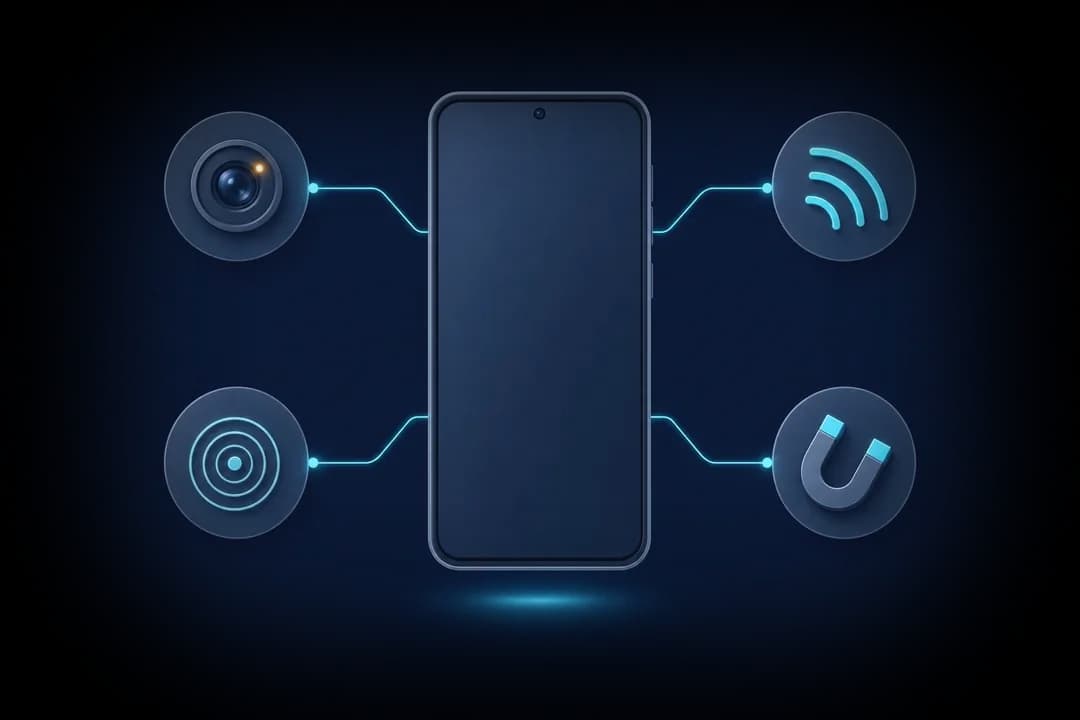
The Wi-Fi camera scan is the most telling check here, precisely because a smart purifier already uses Wi-Fi. Candor does not flag a device just for being on the network. It flags devices that answer camera discovery requests or open ports used for live video streams and recorders. A normal smart purifier talks to its app and cloud service but should not offer a video stream. If the purifier's position matches a device flagged for streaming video, that is a strong reason for concern. If the camera uses a separate network or only records to a card, the scan will not see it.
The lens finder is the other key check. Dim the room, turn off the purifier's own lights if you can, and sweep the panel and grille. A lens gives a small, sharp, steady point. Button icons, the air-quality ring and glossy panel plastic all reflect too, so check each mark closely.
The magnetic sensor is not useful here, because the fan motor in every purifier raises the reading strongly. The Bluetooth scan may list some purifiers that use Bluetooth for setup; a camera-style name is worth a look, but many devices do not advertise at all.
If you are not sure
Ask the host or property manager what the device is and why it is in the room. In a short-term rental, many platforms require hosts to disclose devices, and Airbnb bans indoor cameras. You can unplug a purifier safely by its plug and turn it to face a wall. Take photos first, then report anything that still looks wrong. The Airbnb guide explains how the platform treats cameras.
Check an air purifier for a camera
- Note its positionSee whether the purifier sits on a dresser, shelf or nightstand facing the bed, sofa or bathroom door, and whether the room needs one.
- Identify every mark on the panelMatch each light and dot on the control panel and grille to a button, indicator or sensor. Anything left over is the spot to check.
- Look for a card slot and working airflowCheck the sides and base for a memory card slot, and hold your hand over the outlet to feel whether air actually moves.
- Sweep with the lens finderIn a dim room, with the purifier's lights off if possible, sweep the panel and grille using Candor's lens finder.
- Run the Wi-Fi camera scanJoin the property's Wi-Fi and run the scan. A purifier can be listed as a normal device; a video stream flag is what matters.
- Unplug, ask, reportIf it still looks wrong, photograph it, unplug it and face it to the wall, ask the host about it, and report it to the platform.
What a phone check cannot find
- A purifier motor always raises the magnetic reading, so the sensor cannot separate a camera unit from a normal one.
- A camera purifier on a separate network, or one recording only to a card, will not appear as a video device in the Wi-Fi scan.
- The glossy display panel and its lights create lens-finder marks that are not lenses.
Frequently asked questions
My purifier connects to Wi-Fi. Is that a bad sign?
No. Many smart purifiers use Wi-Fi for an app. The sign to look for is a device flagged for offering video, not just a device on the network.
Can a purifier camera record sound?
Some can. Candor is not an audio bug detector and does not find audio-only listening devices. See the bug and RF detector guide for what that takes.
What about a humidifier or fan?
The same approach applies: match every dot on the panel to a function, sweep with the lens finder, and check the network for a video stream.